Create an image tile
An image tile shows a cover image in the mosaic; one click opens the gallery full screen, with a caption under each image.

Create the tile
- In Content Manager, click
TileImage, then Create new entry at the top right. images: click the “Click to add an asset…” area. In the dialog, pick images you already uploaded (Browse tab), or click Add more assets to upload from your computer (you can drop several at once), then Upload … to the library. Finish with Finish.description(optional): a short text, shown under images that have no caption. It is also the description used by search engines and sharing previews.tile: click “No entry yet. Click to add one.” to open the tile block, then fill in its fields (see below).- Click Save, then Publish: the tile appears on your site.
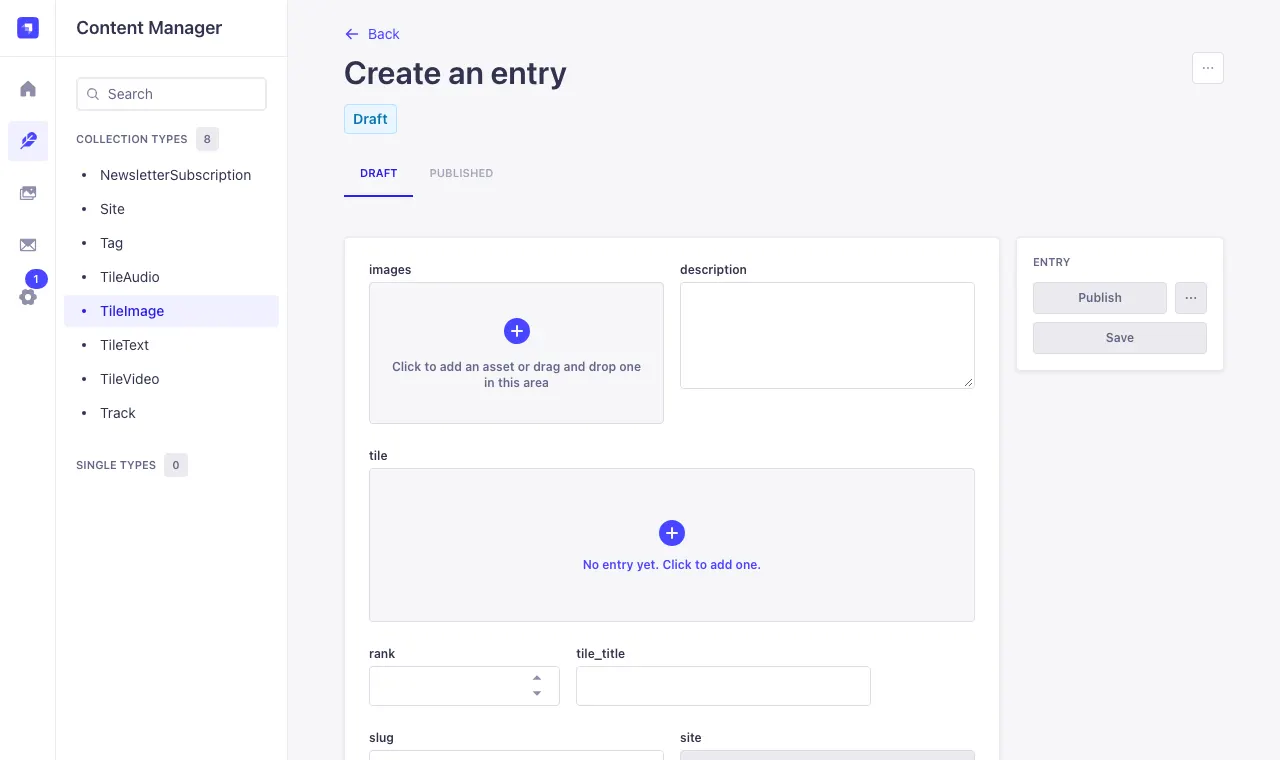
The tile block, shared by every tile
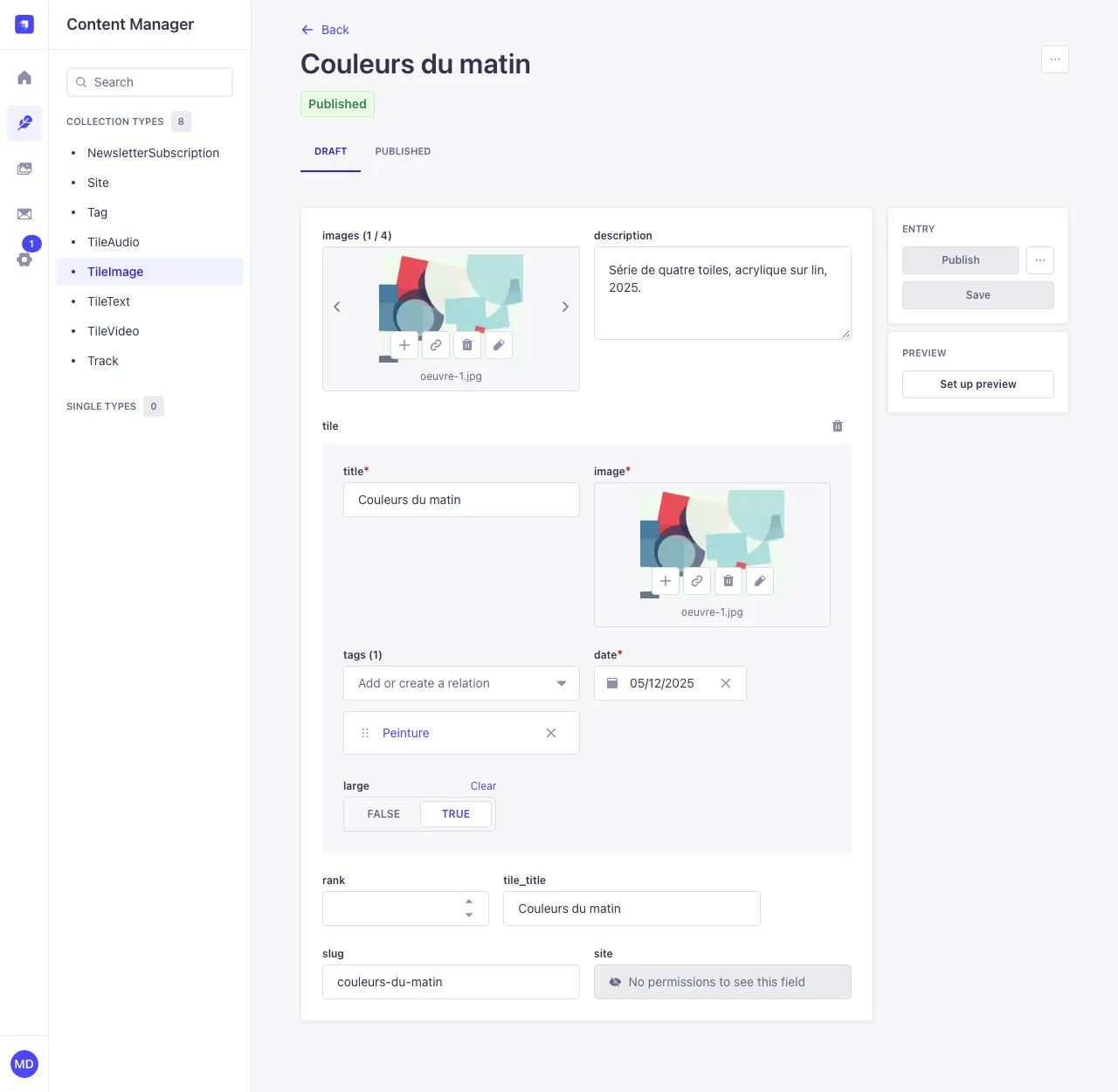
All four kinds of tiles have this block, which decides how they look in the mosaic:
title(required)- the title, shown when hovering the tile and used as its page's title (browser tab, search engines);
image(required)- the cover image in the mosaic. Any proportions work (landscape, portrait, square): they are kept;
tags- the tile's themes (Add or create a relation), one or more;
date(required)- places the tile in the by-date page: its year and its order, newest first;
large- TRUE: the tile is two columns wide, to feature a work.
Further down, slug is the tile's address (/image/couleurs-du-matin). Leave it empty: it is made from the title. You can change it, but links already shared to the old address will stop working.
Change the order of the images
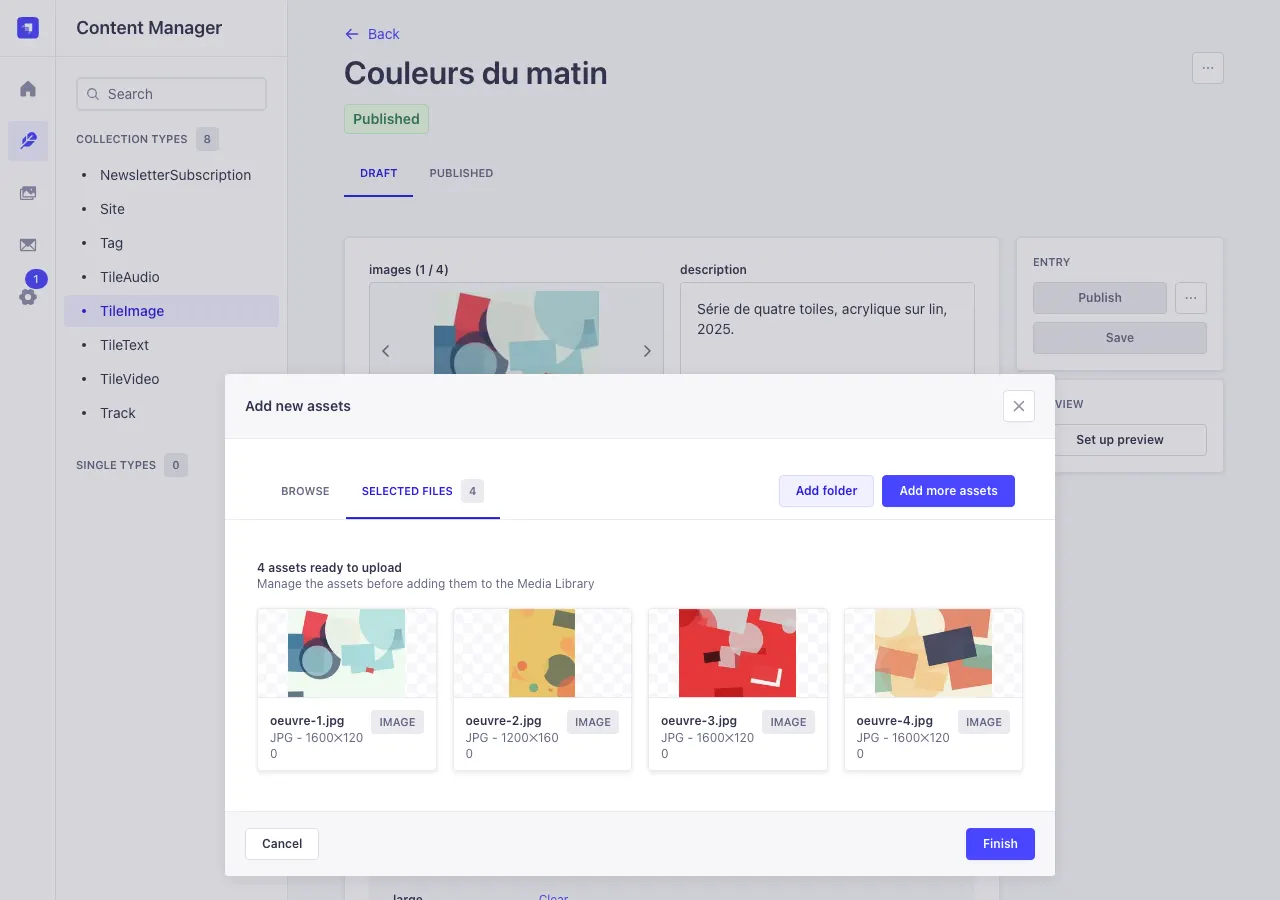
Images are shown in the order of the images field. To change it: hover the image shown in the field, click Add (the +), open the Selected files tab and drag the images into order, then Finish and Save. The field's arrows go from one image to the next; the bin icon removes the image from the gallery (not from the media library).
Add captions
Each image can have its own caption (title, medium, size, photo credit…), shown under it in the gallery:
- Hover the image in the
imagesfield and click Edit (the pencil), or open it from the Media Library. - Fill in Caption; also fill in Alternative text (a short description of the image for visually impaired people and search engines).
- Click Finish.
An image without a caption shows the tile's description.
Recommended formats and sizes
- JPEG for photos and artworks; PNG for drawings, logos and flat colours.
- At least 1000 pixels wide, ideally 2000 pixels on the longest side. Larger is no use and slows the upload down.
- Keep each image under about ten megabytes.
- No need to prepare several sizes: your site makes smaller copies (500, 750 and 1000 pixels wide) and a lighter WebP copy, and each visitor gets the one that fits their screen. Your originals are never changed.
- GIF (even animated), WebP and SVG are accepted, but not converted.