Getting started
After subscribing, you receive an e-mail “Your site … is ready”. Here is how to get into your administration area and find your way around.
1. Choose your password
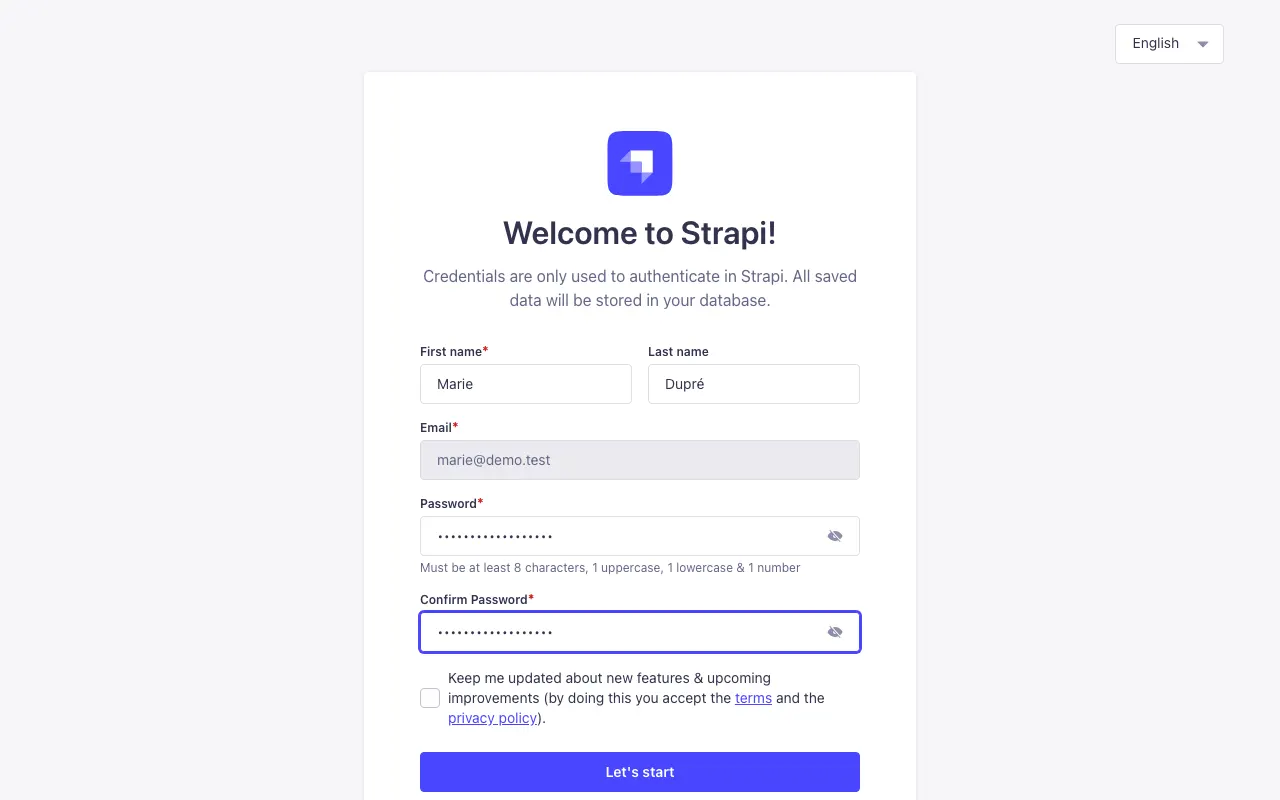
- In the welcome e-mail, click the link after “first choose your password”. The link works only once.
- The page shows your first name, last name and e-mail address (your login). You can change the page's language at the top right.
- Type a password of at least 8 characters, with at least one uppercase letter, one lowercase letter and one digit, then repeat it in Confirm Password.
- The “Keep me updated…” box is about the newsletter of Strapi, the software behind the administration area: leave it unticked if you are not interested.
- Click Let's start: you are in.
The link was already used, or you can't find the e-mail? Write to us at contact@tilefolio.com with your site's address.
2. Signing in next time
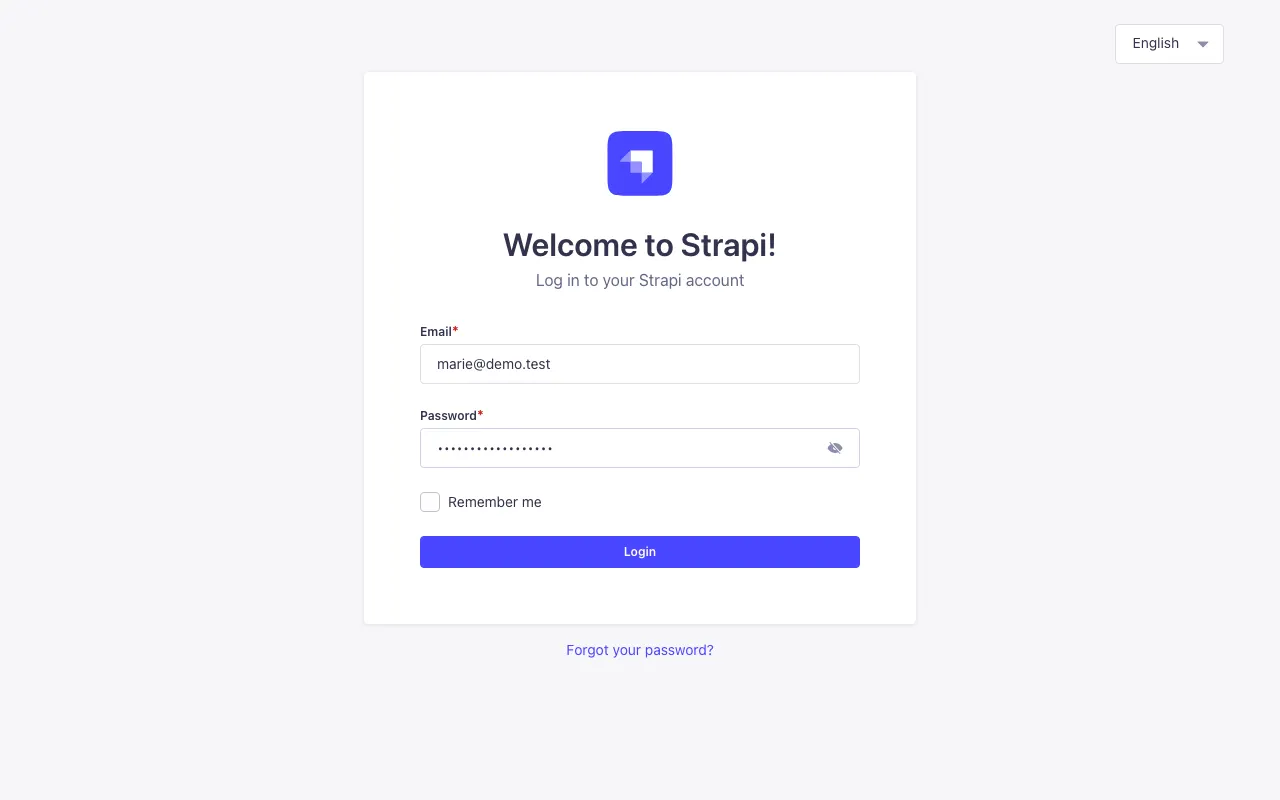
The address of your administration area is in the welcome e-mail. You can also add /admin to your site's address (for example marie.tilefolio.com/admin): you are taken there.
Type your e-mail and password, then click Login. If you forget your password, use Forgot your password?: you receive an e-mail to choose a new one.
3. The home page of your area
The home page shows your site's name in the My site box. The Edit my site button opens its settings: texts, menus, logo, colours (see Pages, menus and texts and Appearance).
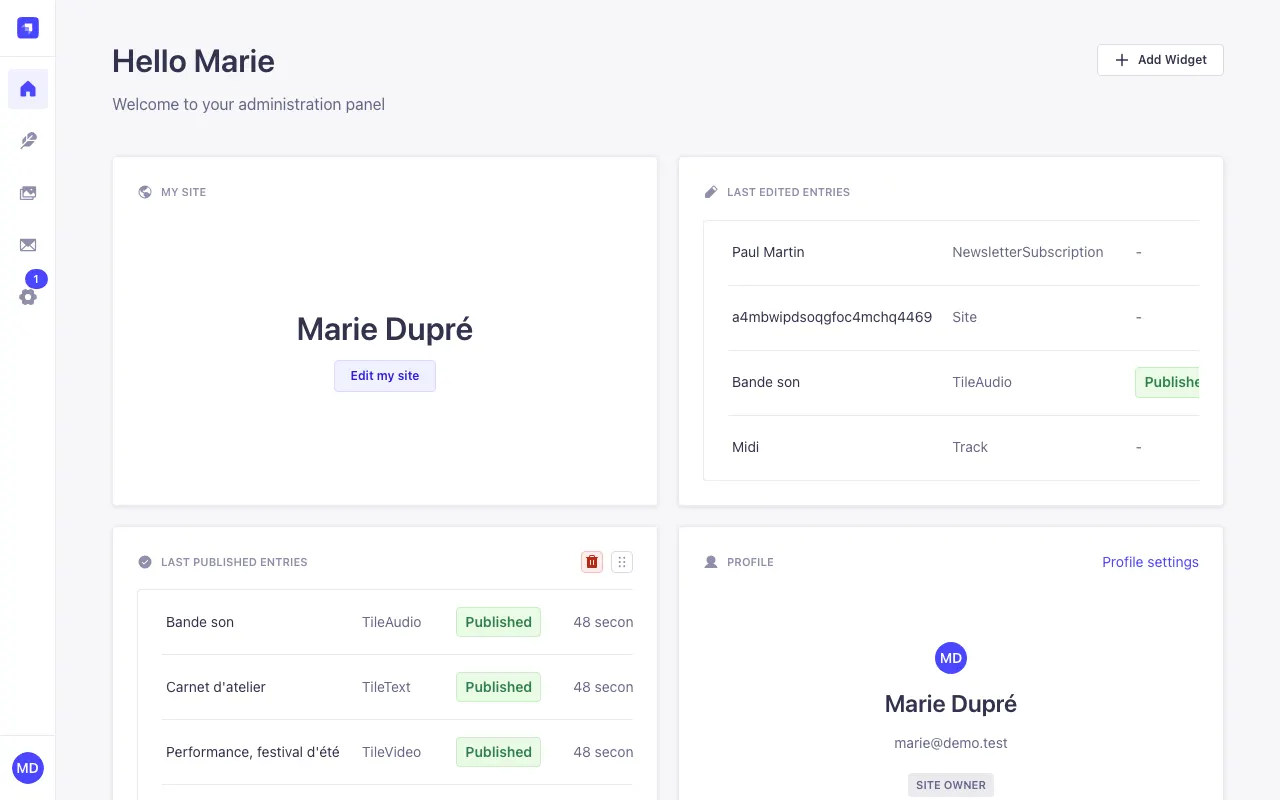
The menu on the left, from top to bottom:
- Home (the house);
- Content Manager (the quill): all of your site's content;
- Media Library: your images, videos, sounds and PDFs;
- Newsletter export (the envelope): your subscribers' list to download;
- your initials, at the very bottom: your profile (password, interface language) and logging out.
4. Content types
In Content Manager, the Collection types column lists everything you can create:
| In the administration | What it is |
|---|---|
TileImage | an image tile (gallery) |
TileVideo | a video tile |
TileText | a text tile (text or PDF) |
TileAudio | an audio tile (album, selection) |
Track | a track, to put in an audio tile |
Tag | a theme, to sort tiles |
Site | your site's texts, menus and appearance settings |
NewsletterSubscription | your newsletter subscribers |
Fields show their technical names (title, date, large…): each page of this help explains what they are for.
The tile_title field is filled in automatically: leave it as it is. Greyed-out fields saying “No permissions to see this field” (site, and in Site: slug, domains, paddle_…) belong to the platform.
5. Save and publish
Save keeps your work without showing it; Publish puts it online. Tiles always start as drafts: remember to publish them. The site's settings (Site), themes and tracks only have a Save button, and are online as soon as they are saved. Details in Organize and publish.
The administration's language
The administration area is in English until you choose a language. To change it: click your initials at the bottom left, then Profile, pick a language in Interface language, and Save. See Account and support.