Create an audio tile
An audio tile works like an album: a cover, a text, and a list of tracks that play right on your site, one by one or in a row.
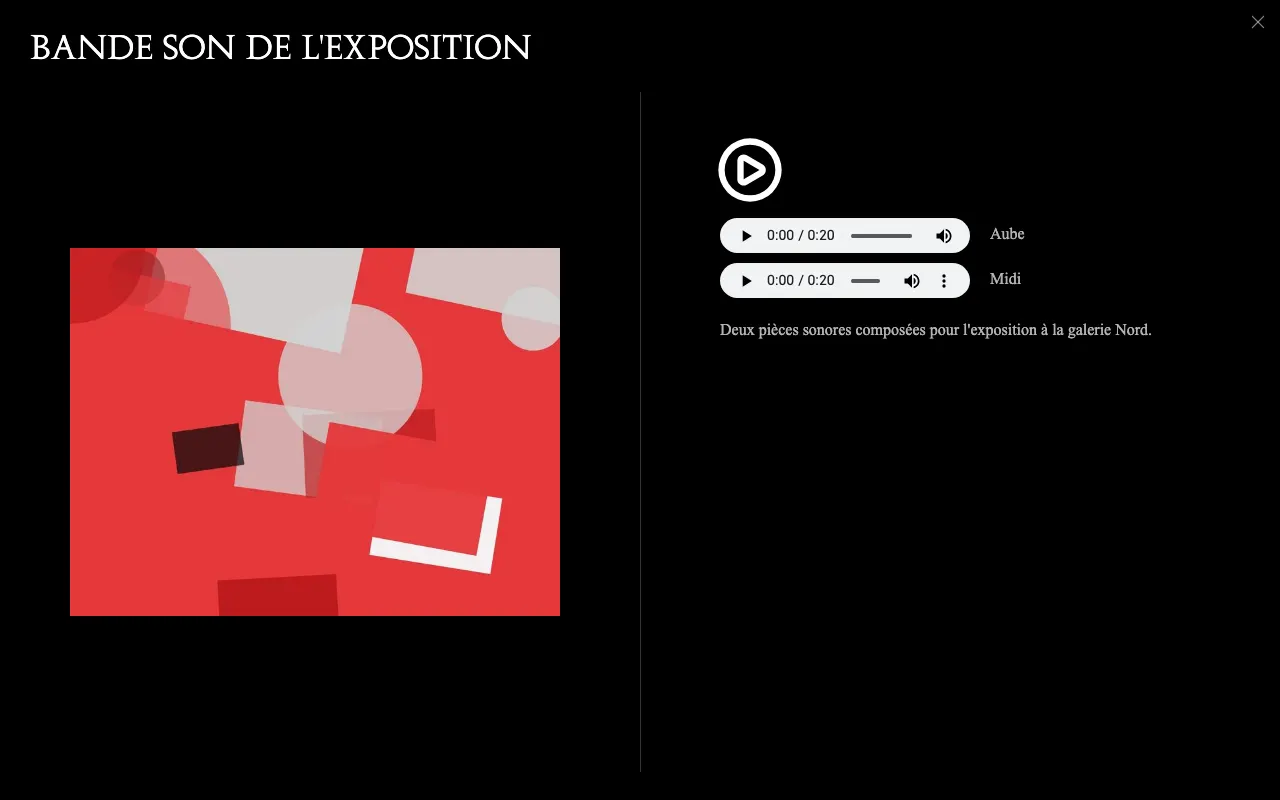
It is made in two steps: first the tracks (Track), then the tile (TileAudio) that brings them together.
1. Create the tracks
- In Content Manager, click
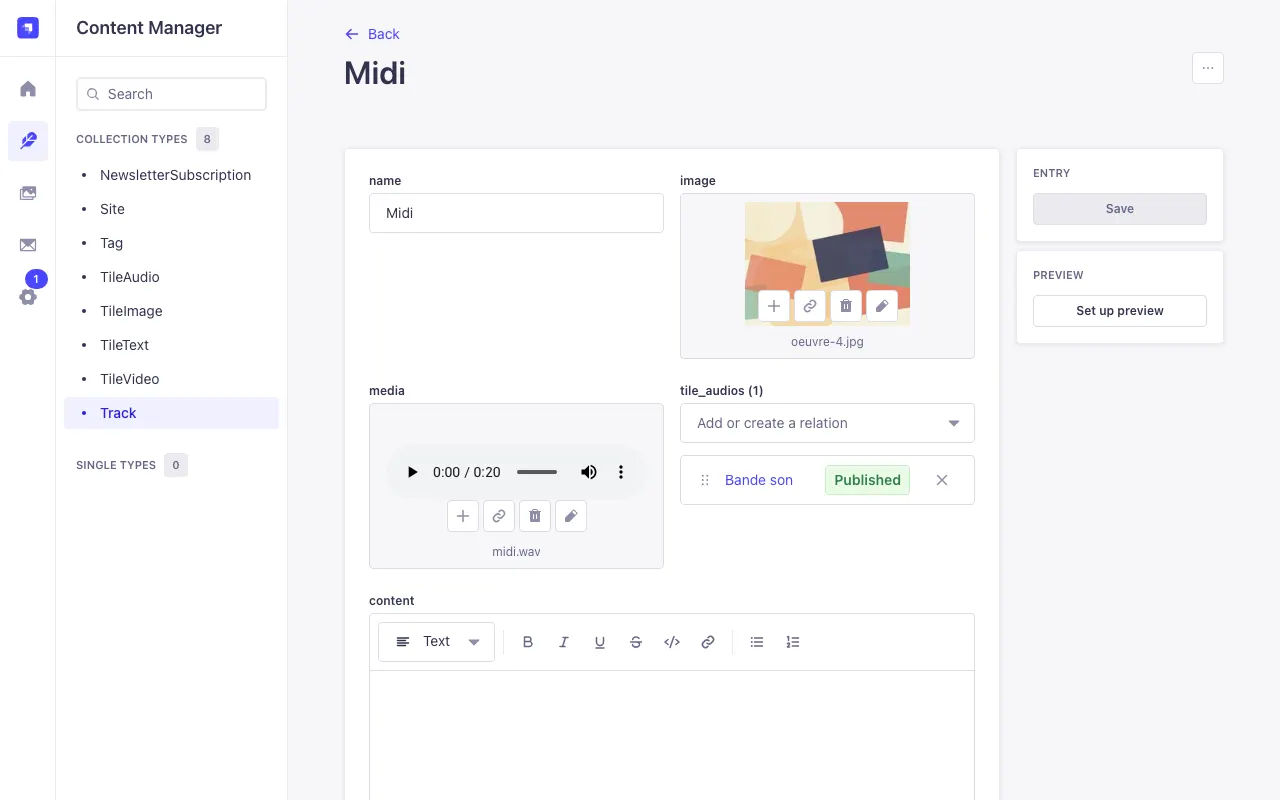
Track, then Create new entry. name: the track's title.media: the audio file.image(optional): shown instead of the cover while this track plays.content(optional): a text shown while it plays (lyrics, credits, notes).can_download: TRUE shows the player's download button. When false, the button is hidden, but this is not a protection: a savvy visitor can still get the file.- Click Save (tracks have no Publish button). Repeat for each track.
2. Create the audio tile
- Click
TileAudio, then Create new entry. title: the title shown at the top of the open tile (for example the album's name).tracks: Add or create a relation, then pick your tracks one by one. Drag them by their handle (⠿) to set the playing order.tile: open the block and fill in the title in the mosaic, cover, themes and date (see the tile block).content(optional): the album's text, shown under the player.- Save, then Publish.
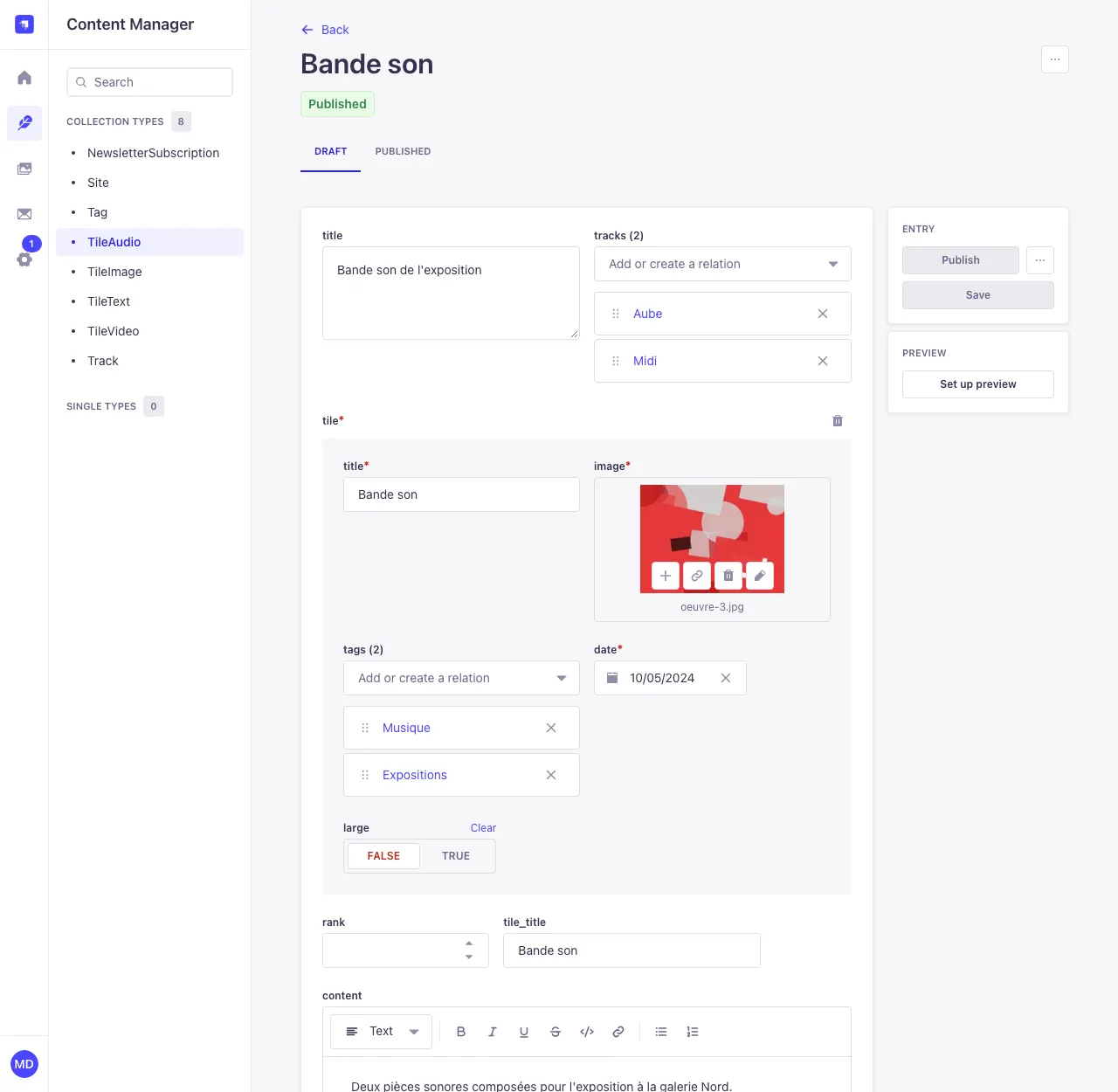
A track can be in several tiles (an album and a compilation, for example). Editing a track changes it everywhere.
Recommended formats
- MP3, 192 to 320 kbit/s: plays everywhere and stays light (about 2 MB per minute at 256 kbit/s).
- AAC / M4A also works in current browsers.
- Avoid WAV, AIFF and FLAC: about 10 MB per minute, slow to load for your visitors. Convert them to MP3 before uploading.