Organize and publish your tiles
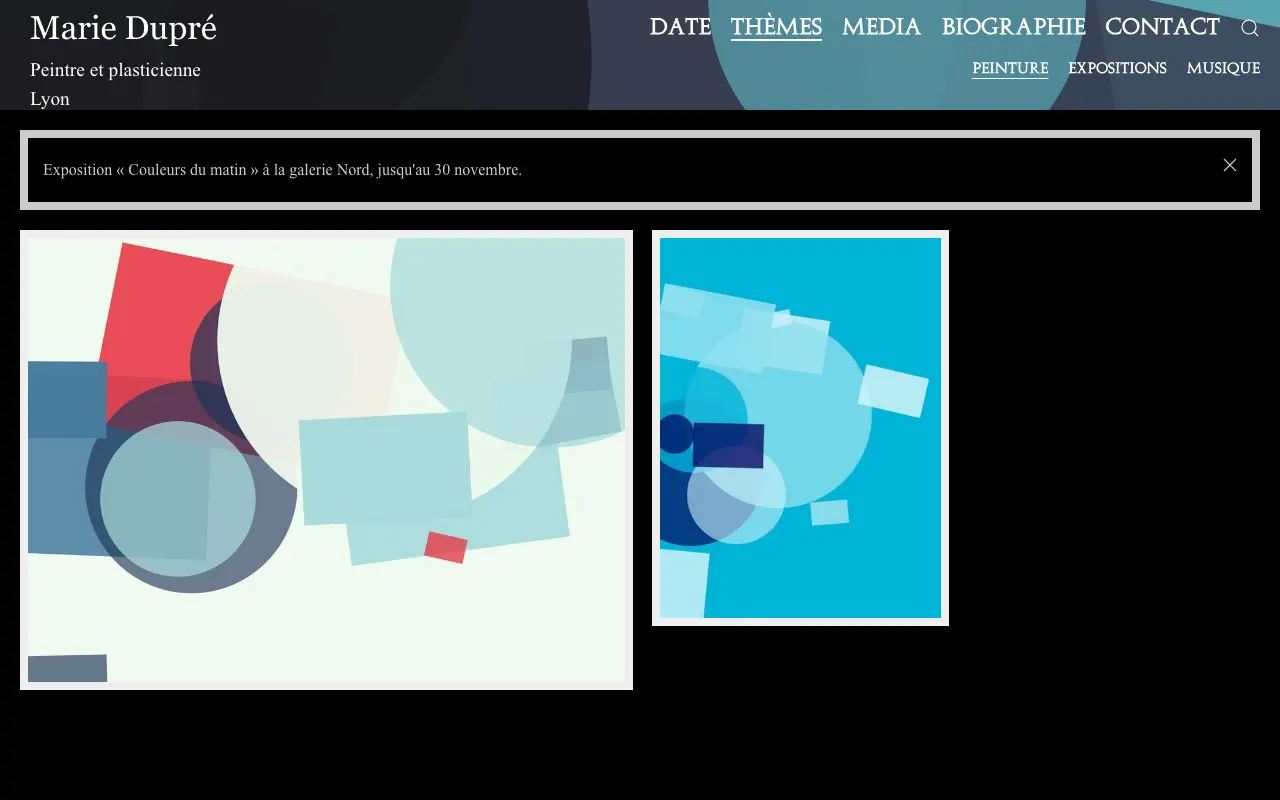
Your site sorts tiles in two ways: by date (the home page) and by theme. Here is how to sort them, put them online or take them down.
Where tiles appear
- Date (the home page): every tile, grouped by year, newest first. The years are listed under the menu.
- Theme: one page per theme (
/t/painting), with the tiles that have this theme. - Media: one page per kind of tile (music, photos, videos, texts).
- The search (magnifying glass) finds tiles by their title and text.
The order: the date
Tiles are ordered by their date field (in the tile block): newest first, everywhere on the site. To move a tile up, change its date.
Themes
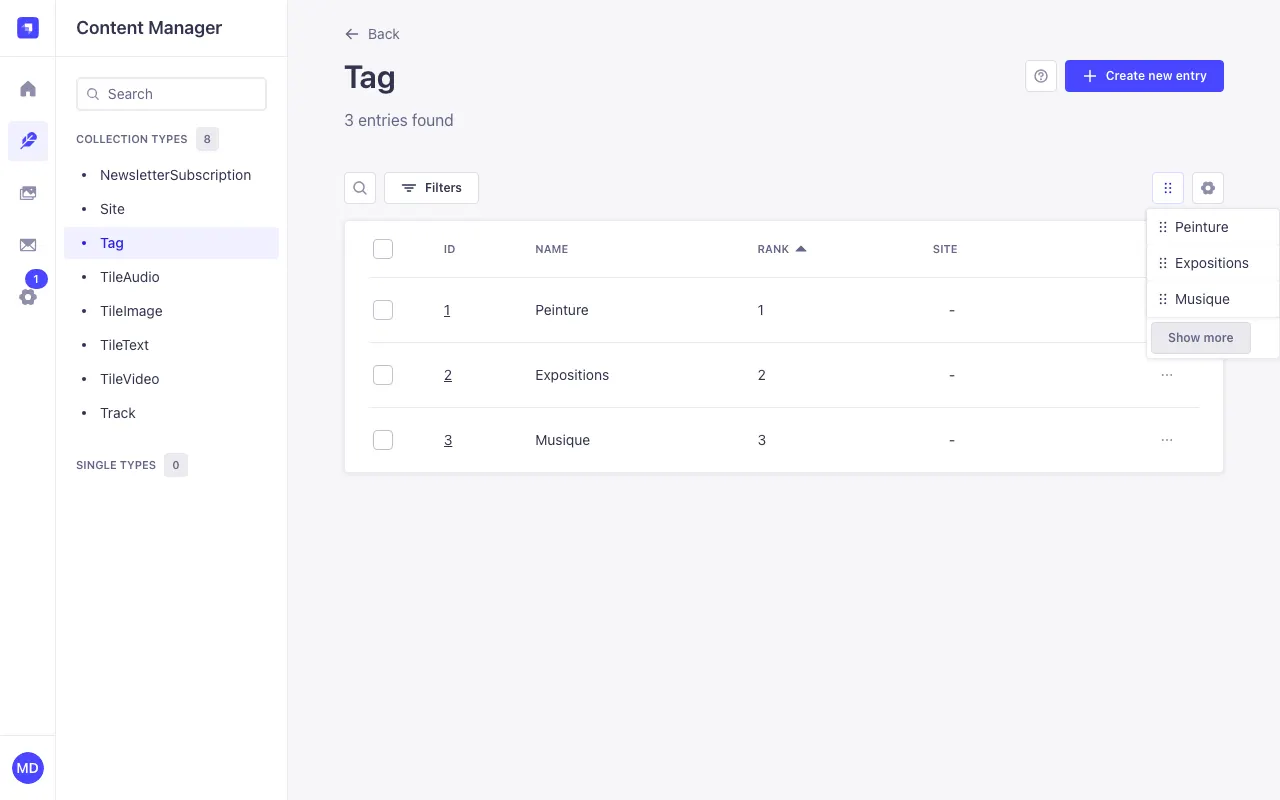
- In Content Manager, click
Tag, then Create new entry. name: the theme's name, as it will appear in the menu.rank: a number (1, 2, 3…). Themes are shown in the order of these numbers. Left empty, the theme goes after the others.- Save: the theme appears in the menu right away. Add it to tiles in the
tagsfield of theirtileblock.
Reorder themes by drag-and-drop: in the list sorted by the RANK column, click the ⠿ button left of the cog, and drag the themes into order. The numbers are updated for you.
Drafts and publishing
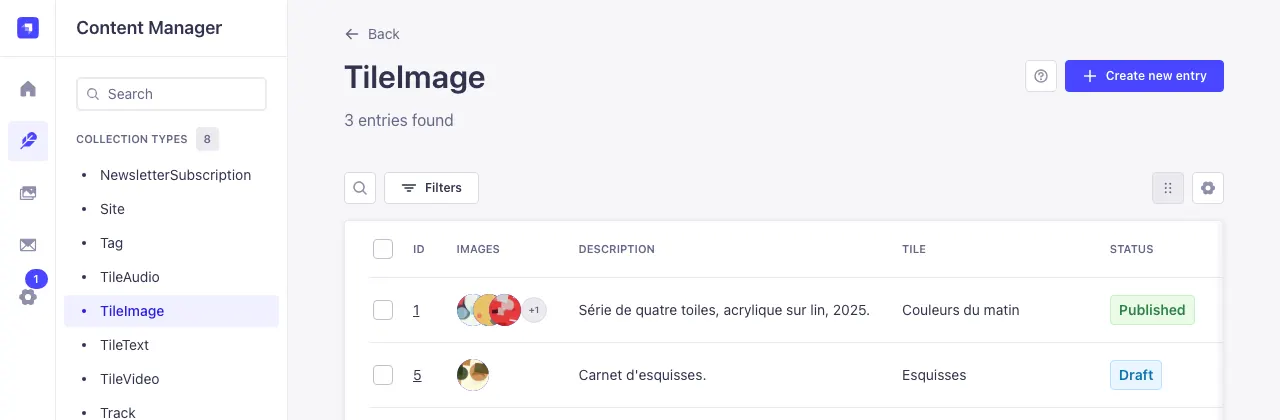
- Save keeps the tile as a draft: it is not visible on the site.
- Publish puts it online.
- If you edit a published tile, it becomes Modified: visitors still see the previous version until you click Publish again. The Draft and Published tabs show both versions.
- To take a tile down without deleting it: in the tile, the ⋯ menu right of Publish, then Unpublish.
Each type's list shows every tile's state in the STATUS column:
Duplicate or delete
In the list, the ⋯ menu at the end of each row offers Duplicate (a copy to edit, handy for a series) and Delete entry. Deleting a tile doesn't delete its files from the media library.